



DIGITAL PARKING PERMIT GUIDE
Visitors & Guests
Digital parking permits are required for vehicles parked at all Foothill-De Anza Community College District parking lots at Foothill College, De Anza College, and the Sunnyvale campus, during the day, evenings, and weekends, not just during regular business hours.
Visitors and guests are required to register their vehicle for a digital parking permit. Visitors may purchase a daily parking permit or a $55 quarterly visitor permit. Permits are valid at all District locations: Foothill, De Anza, and Sunnyvale campuses.
Your license plate serves as your parking permit, no physical permit or decal is required. Parking permits are only valid for the date they are assigned.
Permit Types
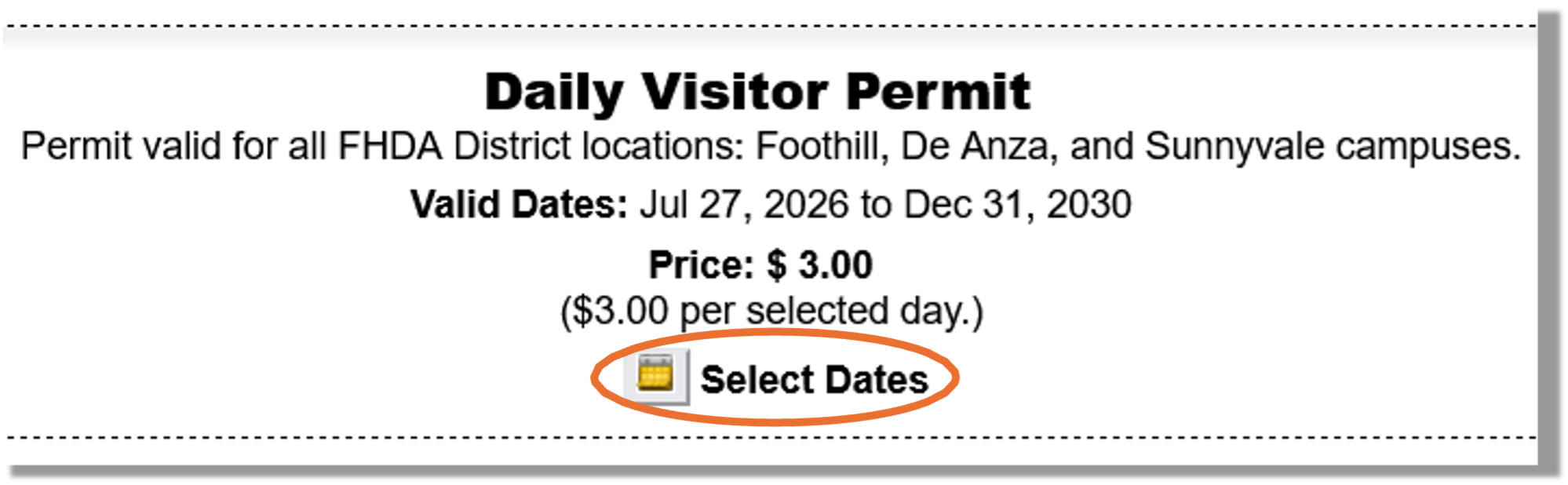
Daily permits are intended for occasional visits and are valid only for the date(s) selected. Once in iParq, select the individual date(s) you will be visiting campus. You may select up to five dates at a time.
Quarterly visitor permits are for visitors who regularly visit District campuses and are valid for the applicable academic quarter. Once in iParq, select the quarterly visitor permit option if you would like parking privileges for the entire applicable quarter.
Step1 
Visitors & Guests sign in here: https://fhdavisitor.thepermitstore.com/purchase.php
You will be directed to the FHDA Permit Store (iParq). It is not required to create an account. You can choose to either create an account or continue with anonymous Guest sign in.
If you have a pre-approved code for a free parking pass, enter it in the Pre-Approval Search at the top and click “Search”.
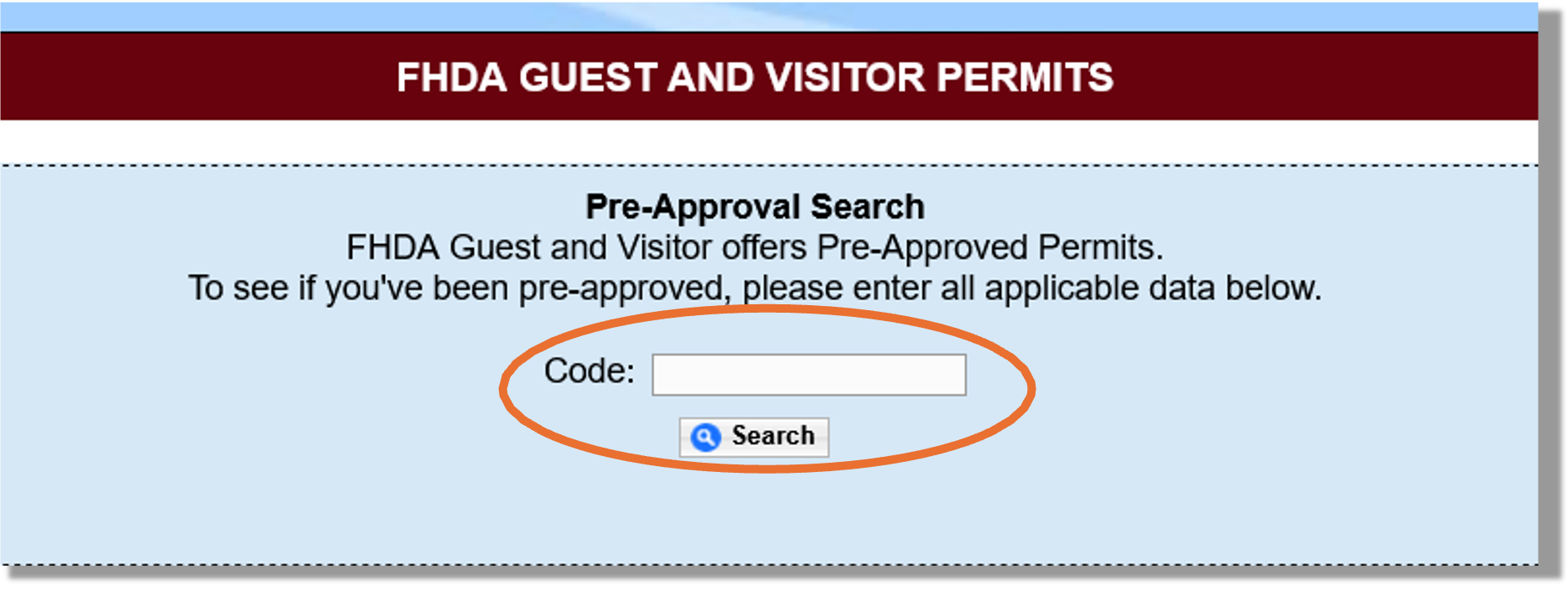
If you do not have a pre-approved code, then click “Select Dates” you need a parking pass for. You are allowed to select up to five dates at a time. Click “Update Cart with Selected Dates” at the bottom.
Step 2
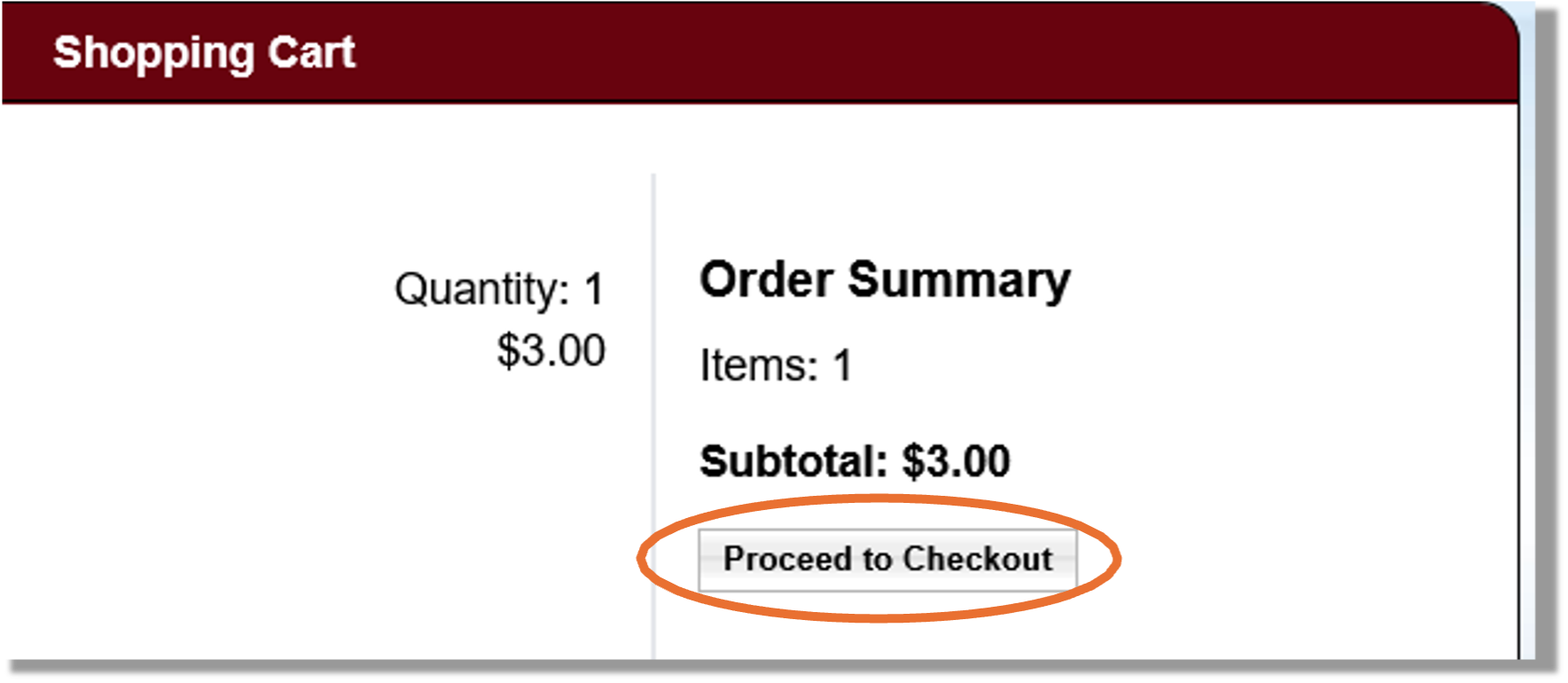
Click “Proceed to Checkout”.
Step 3
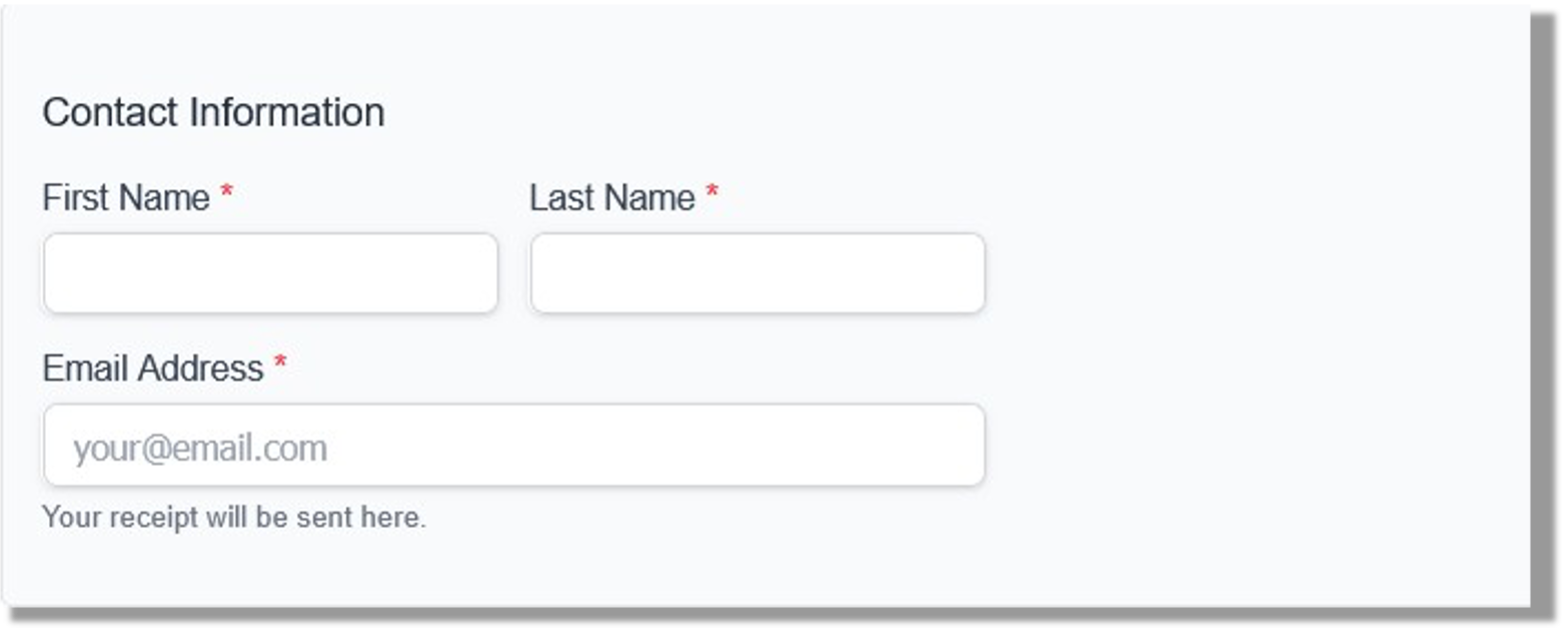
Add your contact information.
Step 4
Add your vehicle by clicking “Add New Vehicle to Profile”. Only one vehicle is allowed per purchase per permit.

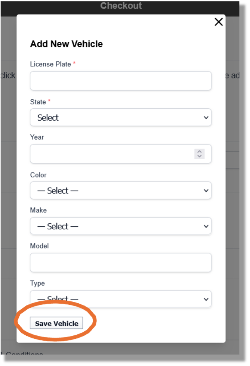
A pop-up window will appear to add your vehicle. All of these sections are required.
Enter your vehicle information (license plate, state, year, color, make, model, and type), then click “Save Vehicle.”
A TYPO IN THE LICENSE PLATE FIELD WILL RESULT IN PARKING CITATIONS.
Any citation issued as a result of entering the information incorrectly will not be dismissed.
Step 5
Select an existing vehicle from the drop-down menu or click “Add New Vehicle to Profile”. Only one vehicle registered in the system can be parked on campus at any given time.
Once done adding vehicles, select the primary vehicle that you will be driving to campus and click “Continue” at the bottom of the page. Verify the permit is in your cart and proceed to Checkout.

Step 6
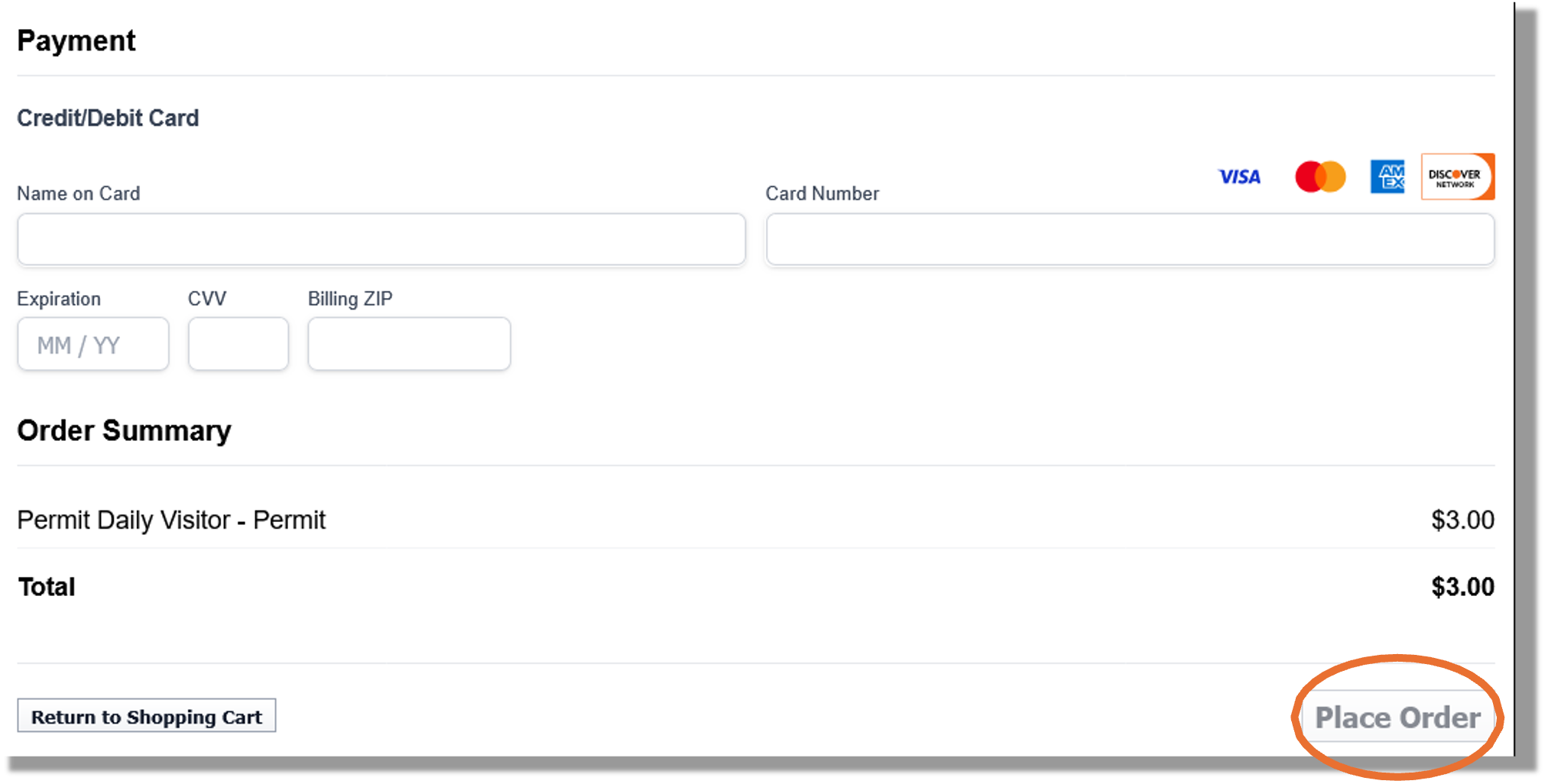
Complete Checkout. Add your payment information, review your order, and click “Place Order.”
Step 7
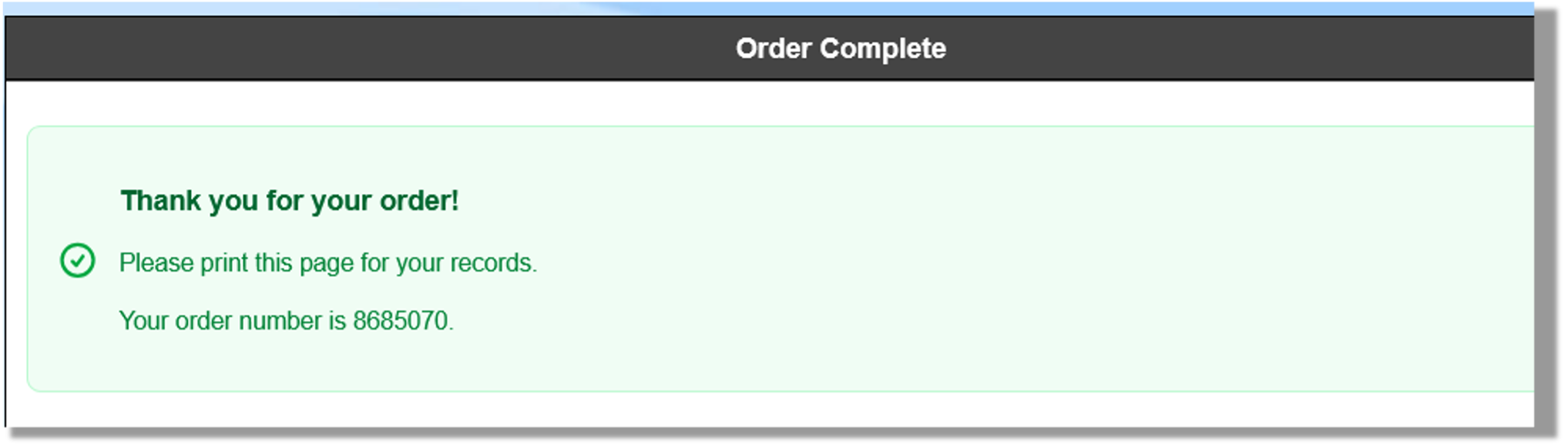
Your order is complete! Save or print the confirmation for your records.
You will also be sent an “Order Confirmation – Foothill-De Anza Community College District” email confirmation with your order number and vehicle summary.
Adding a Vehicle
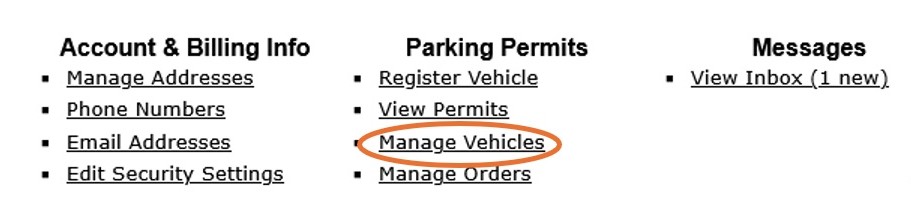
If you need to add vehicles after your have completed the initial request, select "Account" and select "Manage Vehicles".
A pop-up window will appear to add your vehicle. If you have multiples vehicles, add them one at a time. All of the vehicle field sections are required (license plate, state, year, color, make, model, and type), then click “+Add.” Please double-check your details. A TYPO IN THE LICENSE PLATE FIELD WILL RESULT IN PARKING CITATIONS. Any citation issued as a result of entering the information incorrectly will not be dismissed.
Important Information
- Your license plate is your parking permit
- You may register multiple vehicles to your account, but only one registered vehicle may be parked on any of the Foothill-De Anza District campuses (Foothill, De Anza, Sunnyvale) at a time
- Quarterly visitor permits are $55 and are valid for the applicable academic quarter
- Vehicles parked simultaneously under the same account may be cited
- Keep your license plate clearly visible at all times
- A TYPO IN THE LICENSE PLATE FIELD WILL RESULT IN PARKING
- Any citation issued as a result of entering the information incorrectly will not bedismissed
- Questions? Email [email protected]